
Articulate Visually
Introduction
Some thoughts are easier to visualize than explain. This guide demonstrates how visuals can aid articulation as a thot matures.
Analytics are shown as guidelines throughout this example to demonstrate the ebb and flow of the analytics as actions are performed during this guide. They may differ from the analytics on your own device if you are not starting from a fresh install.
Below are shown the analytics before the guide begins:
Step 1: Capture inspiration
Articulating deeper things often start by stating something simple..
Create a new host note.
Instructions
What this means
A new host note has been created, and it has no visuals yet. The lack of visuals does not count towards or against the "Articulated" analytics metric.
Step 2: Add palette images
You have an abundance of thoughts revolving around this idea, but right now they just exist as images..
Add Palette Images to the "I want to grow this year" thot.
Instructions
- Download the following images to your device's Photo Library: AcrylicPaints.jpg, AiHeadline.jpg, OfficeChair.jpg, Volunteer.jpg, ConfidenceMeme.jpg, CornholeLeague.jpg, CoffeeDate.jpg
- Return to the Thotlink app.
- Place the cursor in the thot that says "I want to grow this year".
- Ensure the
icon in the toolbar is active so that the icon in the toolbar is shown. -
Press the
icon from the toolbar to open the media selector. - If this is the first time opening the media selector, it may ask you to provide access to your Photo Library. If so, choose to allow full or limited access. This guide will proceed as if full access was granted.
- At the top center of the media selector, tap "Palette". This converts the media selector's mode from selecting media for this thot's cover image to selecting media for this thot's palette images.
-
Press the "Select images from your library" button. Select the seven images downloaded earlier to your Photo Library.
Then press "Add" at the top right.
The file selector will return to the media selector and navigate to the
Selected tab. - Press "Done" at the top right of the media selector to confirm the selected Palette Images.






What this means
Each palette image is a tracked stage of visual inspiration likened to a "glimpse". Unlike tracked stages which are text-based, this one operates visually. It is neither hierarchical nor associative, just a tracked relationship between an image and a thot that connects somehow.
A palette image is one of two visual inspiration stages: a palette image is inspired, whereas a cover image is articulated.
By adding Palette Images, Inspired and Visual increased.
Step 3: Add a cover image
You're serious about your new ambition and decide to give your note a memorable cover image..
Add a Cover Image to the "I want to grow this year" thot.
Instructions
- Download the GrowJournal.jpg image to your device's Photo Library.
- Return to the Thotlink app.
-
Press
on the toolbar to open the media selector. -
Press the "Select image from your library" button. Then tap the
GrowJournal.jpg image downloaded to your Photo Library. The file selector will return to the media selector and navigate to theSelected tab. - Press "Done" at the top right of the media selector to confirm the selected Cover Image.

What this means
A cover image gives a thot a recognizable "face". It should be a memorable image that best represents this thot's meaning.
A cover image does not have to begin as a palette image first.
A thot can have only one cover image, but that cover image can be changed later as a thot's meaning develops.
By adding a cover image, Visual and Covered increased, whereas Described and Bare decreased.
Note that adding a cover image does not directly affect the Articulated metric even though it is considered articulated. The only way a cover image affects the Articulated metric is by moving a palette image into a cover image, which consequently decreases the Inspired metric.
Step 4: Start making brush strokes
You want to begin explaining what your palette images mean..
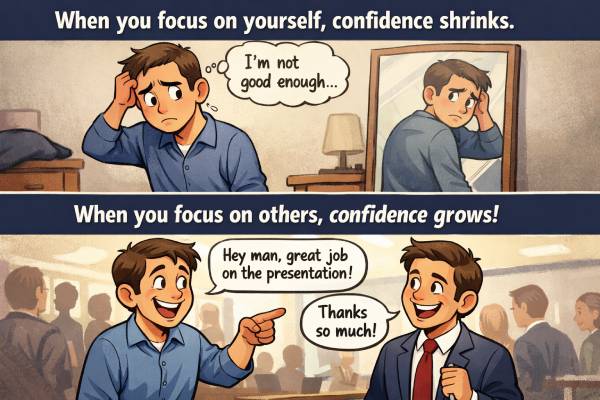
Move the ConfidenceMeme.jpg palette image into a child thot.
Instructions
-
Open the media selector by tapping the
Image Palette (7) item twice quickly. The media selector will open into the "Palette" context andSelected tab automatically. - Scroll to the selected ConfidenceMeme.jpg palette image and long press it.
-
In the new menu that appears, press the
Move to Child button to move this palette image into a child thot's cover image. - In the new child thot that is created, type: "Grow confidence by becoming more selfless".
What this means
By moving the palette image into a child thot's cover image, the tracked inspiration begins to wane as the note "I want to grow this year" begins to take shape.
Inspired decreased because a palette image converted into a cover image.
Articulated increased because a new child thot was created.
Piled increased because the number of thots increased in the piled note "I want to grow this year".
Described increased because a new child thot was created.
Covered increased because the newly created child thot received a cover image.
Step 5: View the thots' cover images in fullscreen
You want to see how the cover images look..
View the host note's thots' cover images via
Instructions
- Press → Fullscreen
- Tap "I want to grow this year" at the top of the screen to visit the parent domain of the "Grow confidence by becoming selfless" thot. Use pressing to the left or right of the current thot's text content to move back or forward through the host note's thots.
-
Finally, swipe down and then release to exit
Fullscreen .
What this means
Using
Step 6: Decide that's enough
Sometimes inspiration is okay to part with..
Delete the remaining palette images.
Instructions
- Place the cursor in the thot that says "I want to grow this year".
-
Select the
Image Palette (6) item (once the item is selected it will change color). -
Press
backspace on the keyboard to delete the remaining palette images. A "Confirm Deleting Image" prompt will appear. - Press "Continue".
What this means
There no longer remains any palette image inspiration being tracked, meaning there is no visual inspiration left to draw from.
Inspired and Visual decreased because the remaining palette images were deleted.
Articulated is slightly increased compared to the analytics after
These palette images could have as easily been articulated as the "Grow confidence by becoming more selfless" thot was, but for the sake of this guide's brevity, deleting remaining palette images gets us to the same result of every visual stage of inspiration being resolved.
Thotlink ensures that your inspiration doesn't leave you behind, but still leaves you the option of letting it go.